Who can see what
Last updated: October 4, 2026
Every person in Movo has two settings:
- Your area. The part of your organization you have access to. You see every family, conversation and request in your area, and nothing outside it.
- Admin or member. Whether you can invite and manage teammates. This changes what you can do, not what you can see.
Most questions about "why can't I see this?" come down to the first one.
Your area
Your organization is a tree. At the top is the whole organization. Under it are groups of locations (your organization might call them branches, regions or districts). Under those are the locations themselves, where families actually join.
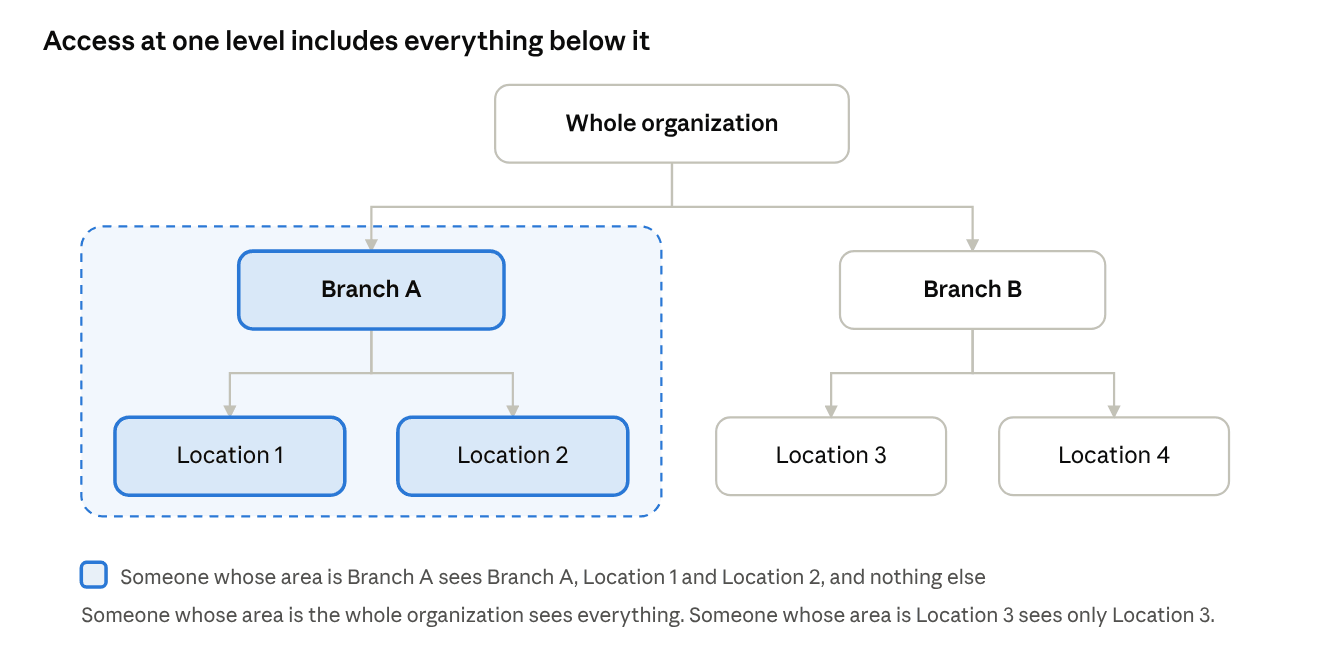
Your area is one point on that tree, and you see everything below it. If your area is the whole organization, you see everything. If your area is one branch, you see that branch and every location in it. If your area is one location, you see that location only. Some people have more than one location in their area, and they see each of those.
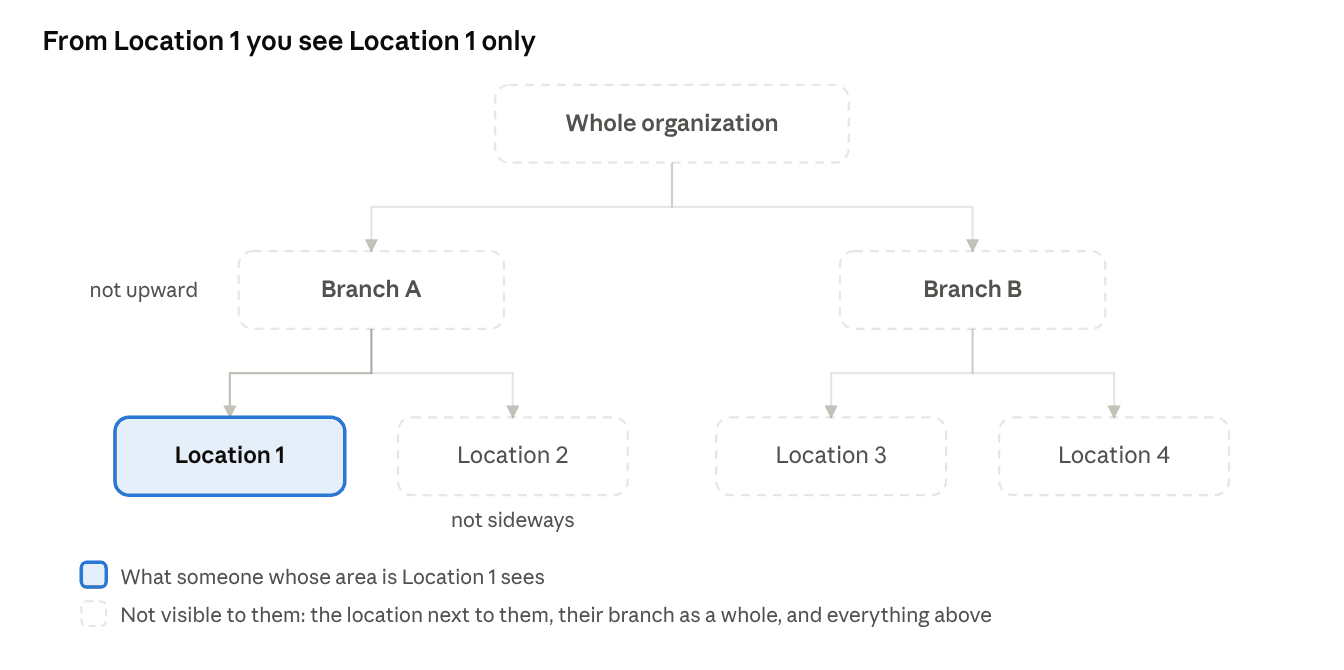
You don't see sideways or upward. Someone at Location 1 can't see Location 2, and can't see families that belong to Branch A as a whole.
What you see, page by page
| Part of Movo | What your area shows you |
|---|---|
| Families | Every family in your area. |
| Conversations | Every conversation with those families. |
| Needs You | Requests from families in your area. Plus any request sent to you by name, even if that family is outside your area. |
| Home and Performance | Numbers for your area only. |
| Knowledge | What's been added for your area, and for the levels above it. You can add entries for your area and anything below it. |
| Team | The people whose area sits inside yours. If your area is a single location, you don't get a Team page. |
| Notifications | Only about families in your area. |
| Settings | Your account and Notifications, for everyone. Organization-wide settings, like locations, escalations and integrations, only when your area is the whole organization. |
One exception to all of this: a concern about a child's safety is only shown to your organization's safeguarding team. It doesn't appear for anyone else, whatever their area. Nobody else sees it, is counted on it, or is told about it.
Admin or member
Everyone is either an admin or a member. The only difference is the Team page.
- An admin can invite people, change what area someone has, make someone else an admin, and remove people. All of that is limited to their own area. An admin for Branch A can't invite someone to Branch B.
- A member can't do any of that. Everything else is the same: a member sees exactly as much as an admin with the same area.
Being an admin doesn't widen your area. If you want to see more of the organization, you need a bigger area, not admin.
Most people don't need admin. It's for whoever looks after the team in each part of the organization.
Assigned only
A few people have a narrower kind of access called assigned only. They don't see an area at all. They only see the families that have been handed to them by name, and only while they're working on them. Their Movo has two pages: Needs You and Conversations.
This is for people who help with specific requests but shouldn't browse every family, for example a support contact or someone who handles sensitive concerns. The Movo team sets it up. Ask through Get help if you need it for someone.
Checking or changing someone's access
An admin can see and change both settings from Settings, then Team.
- Each person's row shows their area. No area listed means the whole organization.
- Open the row to change their area, or to switch admin on or off.
- To invite someone, pick their area as part of the invite. Admin is off by default on new invites.
You can't change your own access, and the last admin can't be removed. If you need a bigger area yourself, ask an admin whose area includes the part you need.
To check your own area, look at the top of Home. It names what you're looking at.