

Seeing a form's submissions
Every time a parent sends your form, it shows on the form's page: who sent it, their child, and what Movo did with it.
See the submissions
Go to Settings, then Channels, and open the form.
Click a row to see everything the parent answered.
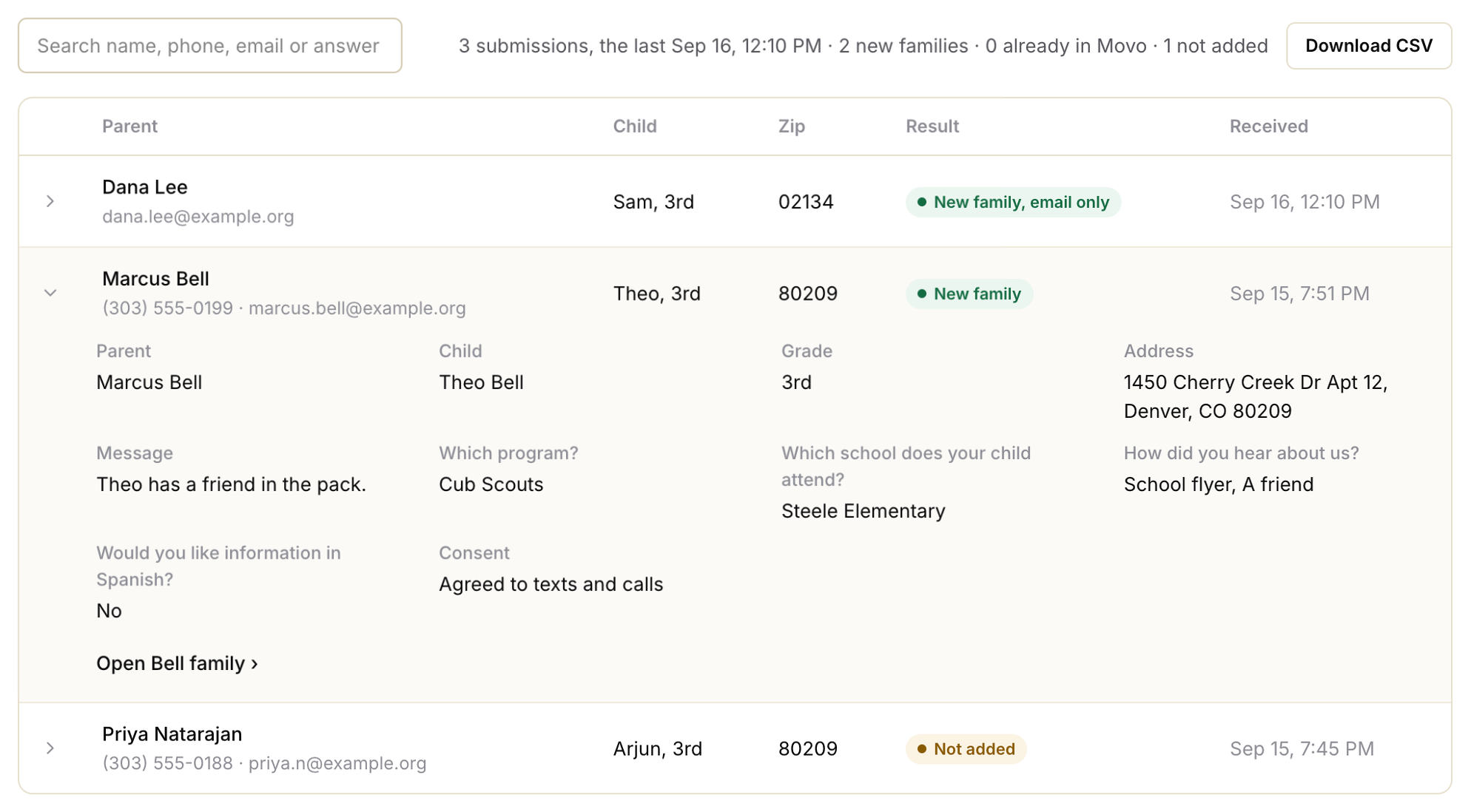
Each row says what happened:
New family: Movo added the family and texted them.
New family, email only: the parent didn't tick the consent box, so Movo emails them.
Already in Movo: Movo added a note to the family you already have.
Not added: open the row to see why.
Click Open, followed by the family's name, under a parent's answers to go to their record.
Find a submission
Type a name, phone number, email or any answer into the search box above the list.
Download the submissions
Click Download CSV to get every submission as a spreadsheet, with a column for each question.
