How to invite users to your Movo account
Last updated: July 28, 2026
Movo works well with your whole team involved!
Inviting new users
You can invite members to your Movo organization by heading to the Team Settings page.
Here you'll see all existing members, any pending invitations, and have the ability to invite new members.
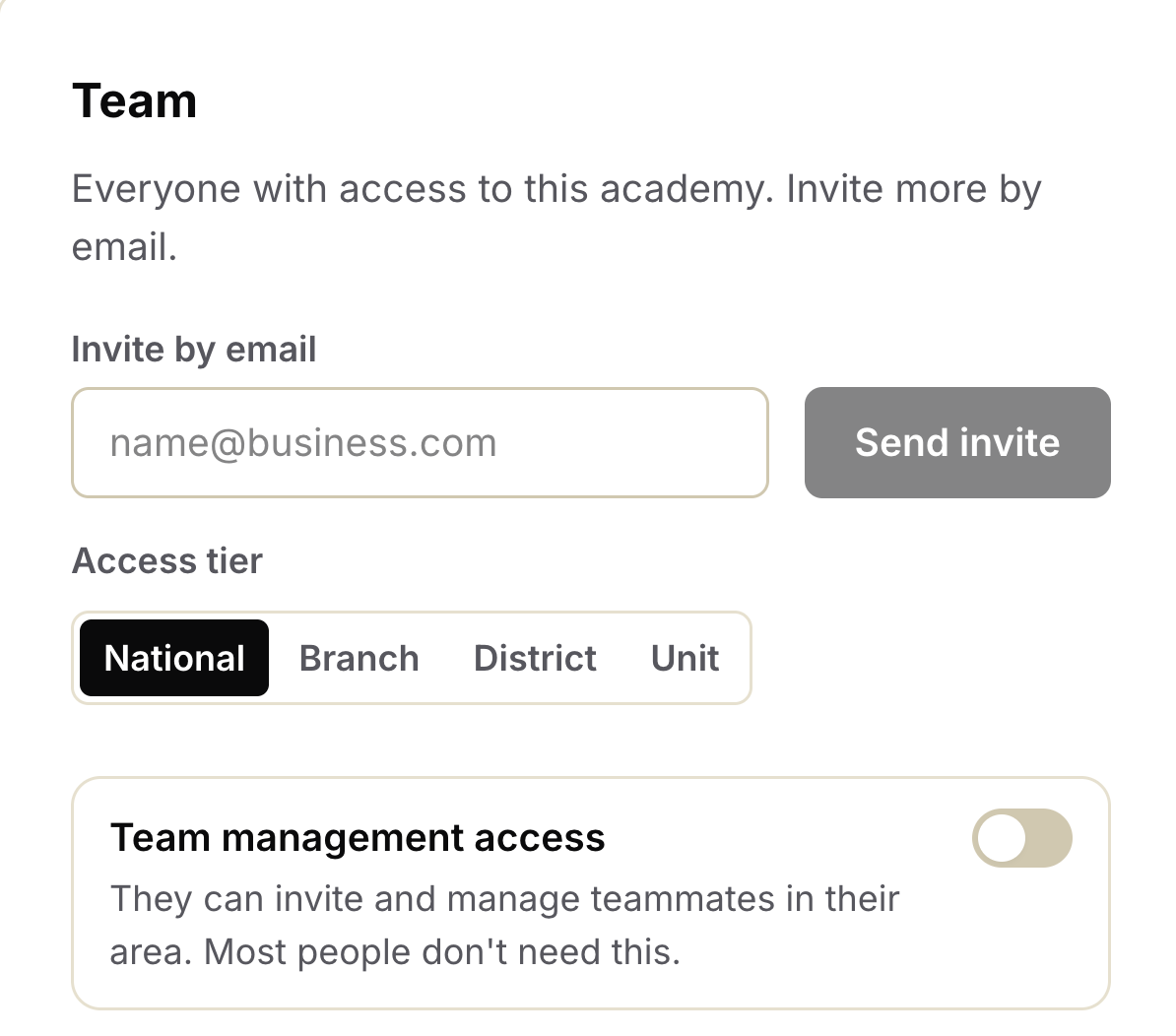
Access tier
For each new user, you are able to select the level of access they have.
If your organization has multiple tiers configured (such as councils, districts, or users) you are able to restrict a user to a particular bucket.
For example, someone invited to a Branch would have access to the Districts and Units below them, whereas someone invited to a Unit can see only their unit.
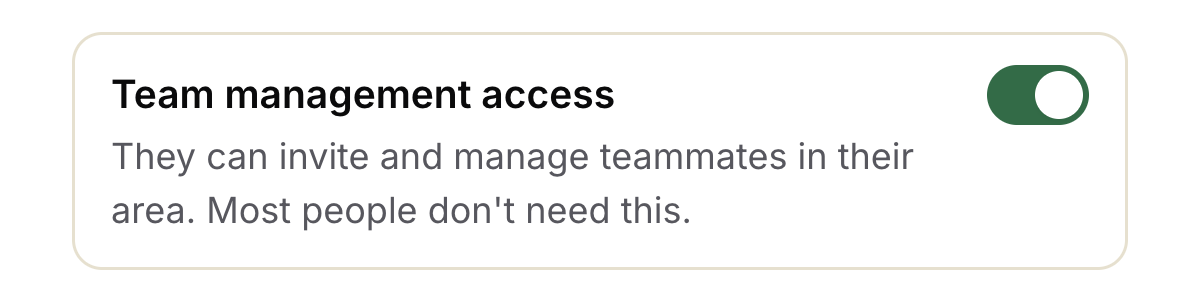
Team management access
By default, new users you invite will not be able to invite further members themselves.
If you would like a user to be able to invite and manage teammates in their area, you can toggle the "Team management access" to green:
Do unit leaders need their own login?
Movo does its work whether or not your unit leaders ever log in. That said, we strongly recommend that Unit Leaders are invited so they can handle escalations.