Finding and exporting families
Last updated: October 4, 2026
The Families page lists every family in your area. Here's how to find a family, export the families you want, and export a whole audience.
Find a family
Go to Families and type in the search box at the top. It looks at family names, every parent's and child's name, email addresses and phone numbers. A phone number works however you type it, with or without dashes.
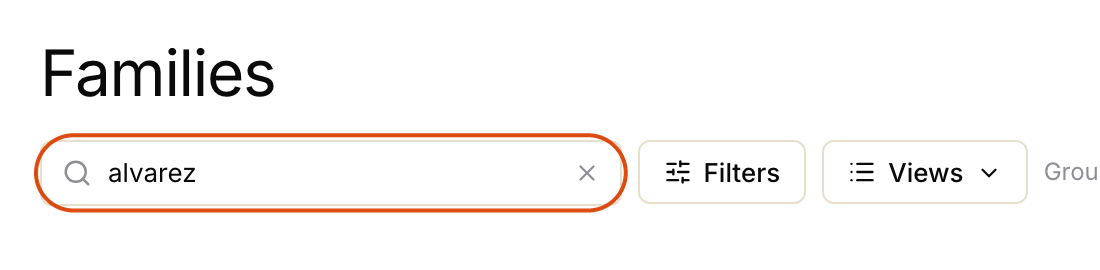
To narrow the list, click Filters. A few of the most useful:
- Any status: where families are in their journey, like everyone who has registered.
- Anywhere: one location or branch.
- Quiet days: families nobody has texted, and who haven't texted back, in at least that many days. Put in 14 to find everyone quiet for two weeks.
- Starred: families you've starred. Your stars are only yours.

Click Done to see the results, or Clear all to start again. If you'll use the same search again, click New view next to Views and give it a name. You can keep it to yourself or share it with everyone at your level. It then appears under Views.

Export families
On Families, tick the box next to each family you want. To pick a run of families, tick the first one, hold Shift and tick the last. A bar appears at the bottom of the page. Click Export, and Movo downloads a spreadsheet of the families you ticked.

Export a whole audience
On Families, click Views. Under Audiences, pick the one you want. The list now shows only that audience's families.

Scroll to the bottom so every family has loaded. Tick the first family, hold Shift and tick the last, then click Export in the bar at the bottom.
To export every family in your area at once, go to Audiences and click Export at the top. With a lot of families it can take a minute.

What's in the spreadsheet
Each row is one family: its name, main contact, status, how many parents and children, language, location, when it was added and when it was last in touch. The spreadsheet doesn't include phone numbers or email addresses. To see those, open the family in Movo.