Marking someone registered
Last updated: October 4, 2026
When someone joins, Movo usually finds out on its own, from your records or from what the family tells it. Sometimes you know first. You can mark them registered yourself in a few clicks.
Mark someone registered
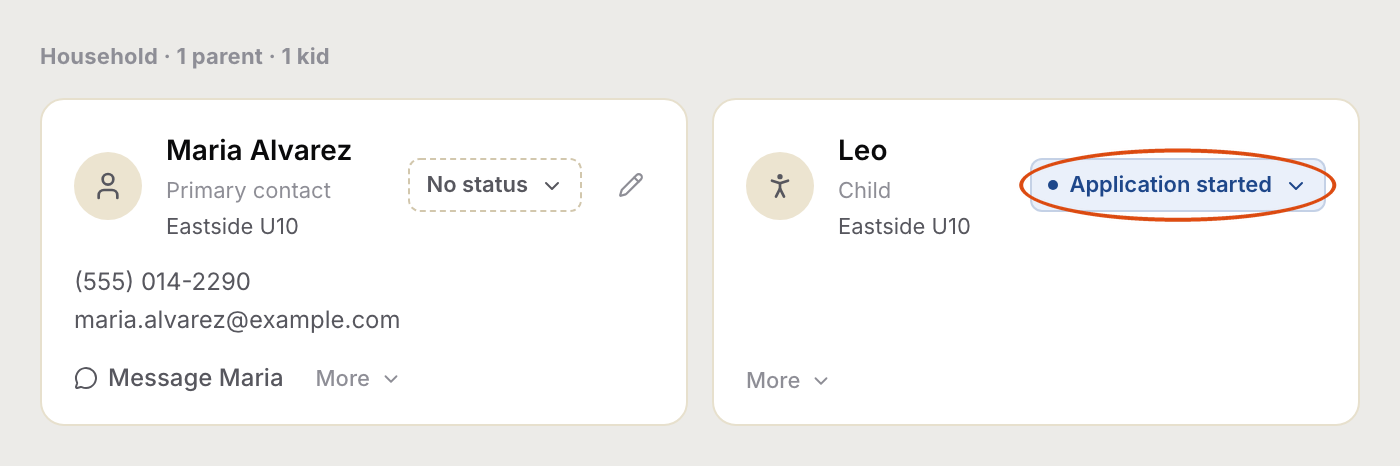
- Open the family, from Families or from Conversations. Each person in the family has their own card, and their current status sits next to their name. Click the status of the person who joined.
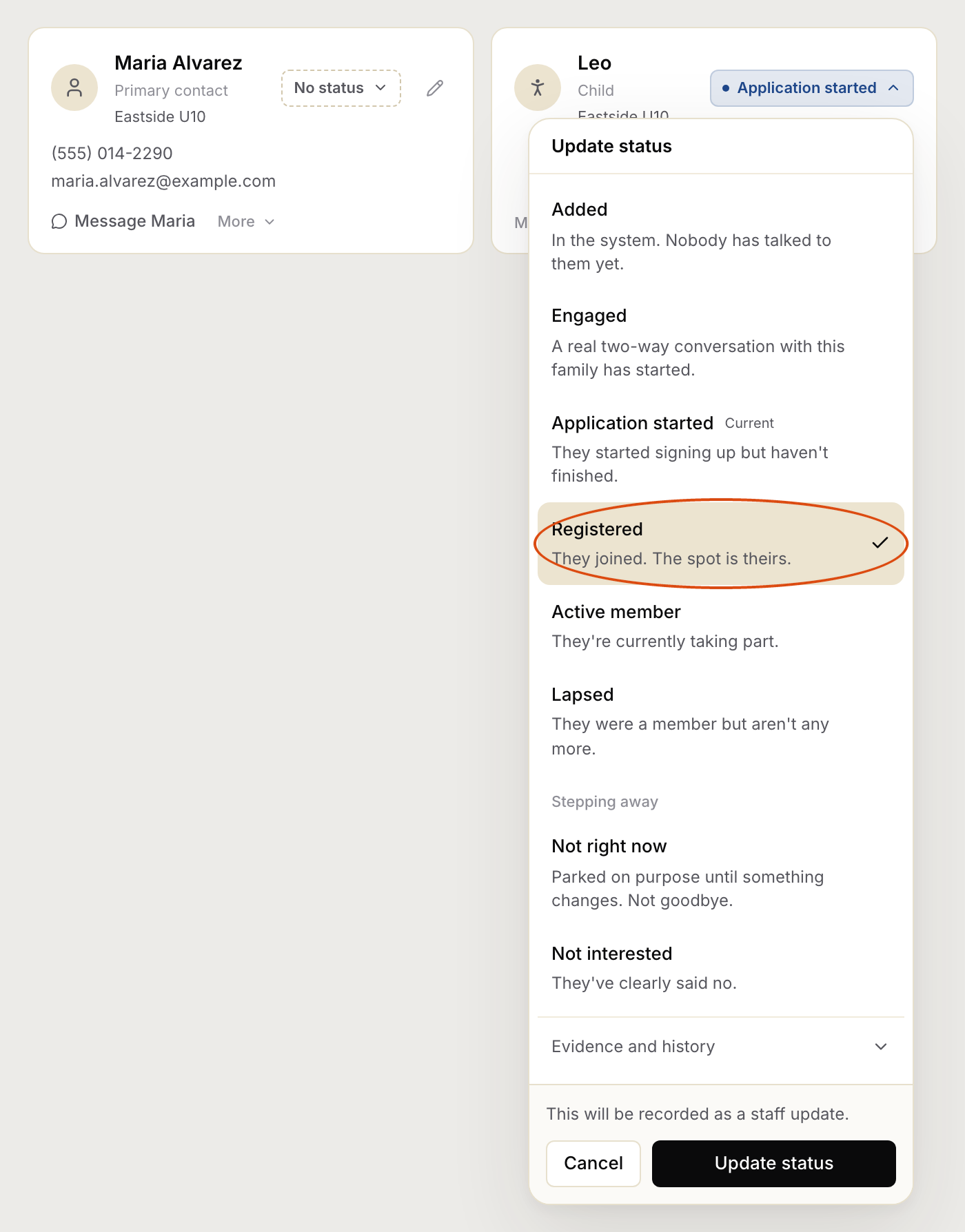
- A list of statuses opens. Pick Registered.
- Click Update status.
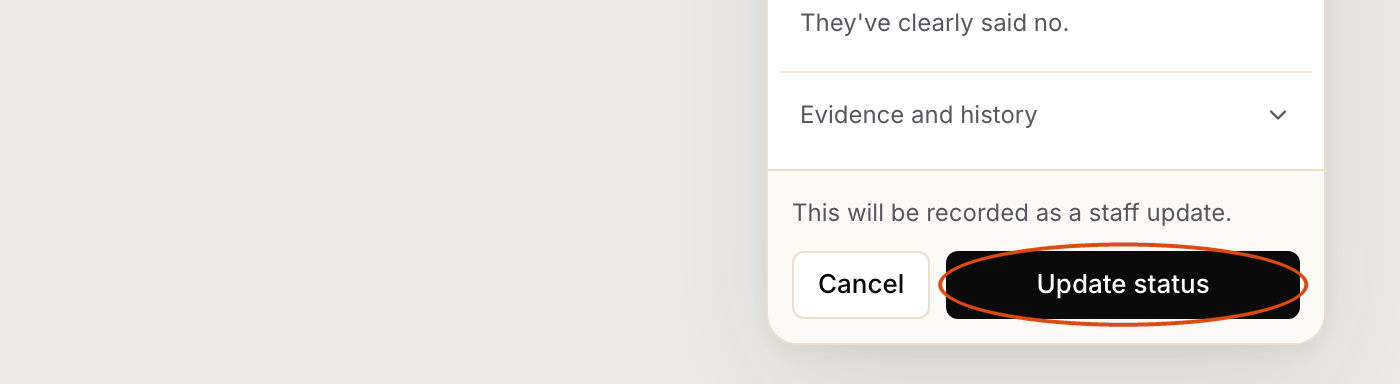
That's it. The change is saved straight away.
Your list of statuses may use slightly different names. Pick the one that means they have joined. If the person has no status yet, the button says No status. The steps are the same.
Mark the right person
Mark the person who actually joined. That is usually the child, not the parent. If two children in the same family joined, mark each one.
What changes
- The person now shows as Registered, with a Set by staff note, so your team can see a person did it rather than Movo.
- They count as registered in your reports from today.
- Movo does not text the family about it. Marking someone registered changes the record, not the conversation. If Movo was still reminding the family to finish signing up, it may keep doing so. If you want that to stop, pause Movo for that family.
Made a mistake?
Click the status again, open Evidence and history at the bottom of the list, and click Recorded in error.

Say what went wrong, then click Void this status. The person goes back to the status they had before. The mistake drops out of every count, but stays in their history with your reason, so your team can see what happened.

Who can do this
Anyone on your team who can edit families. If clicking a status only shows its history, you have view-only access. Ask an admin to change it. See Inviting your team and managing access.