Handling escalations in Movo
Last updated: July 28, 2026
Movo handles most family conversations on its own. When something needs a person, like a refund request, a safety concern, or a question it can't answer with confidence, Movo creates an escalation and hands it to your team.
Where an escalation goes
Every escalation has a type, and every type follows a path you control. You can set who gets told first for each type of escalation, and in what order, under Settings > Escalations. A unit-level question can go to the unit leader, a membership question to the district, and a sensitive issue straight to the council.
Everyone in scope sees the item in their Needs you queue. A teammate can claim it, or you can assign it to a specific person so the rest of the team knows it's covered. If an item needs someone more senior, it can be pushed up to the next level, and the person who pushed it up can still follow along.
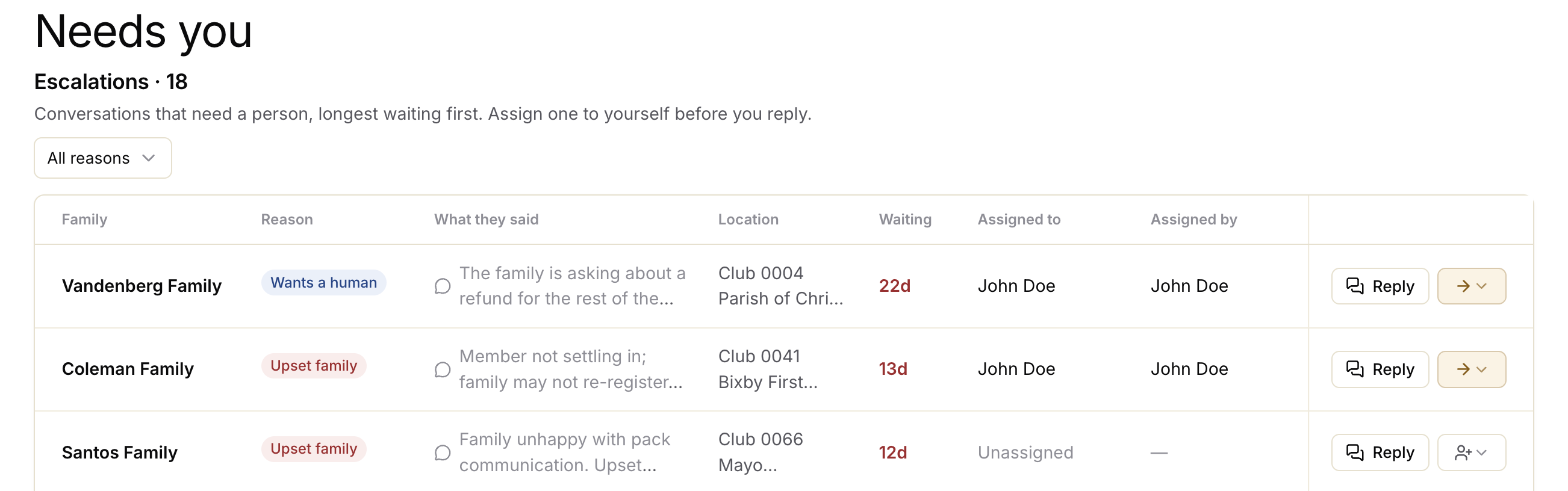
Who owns the relationship
You do. Movo works on your behalf and under your name. The moment a person takes over, Movo goes quiet on that conversation and stays quiet until it's handed back. Every message, call, and note stays in the family's record, so whoever picks up next has the full history.
Understanding the context
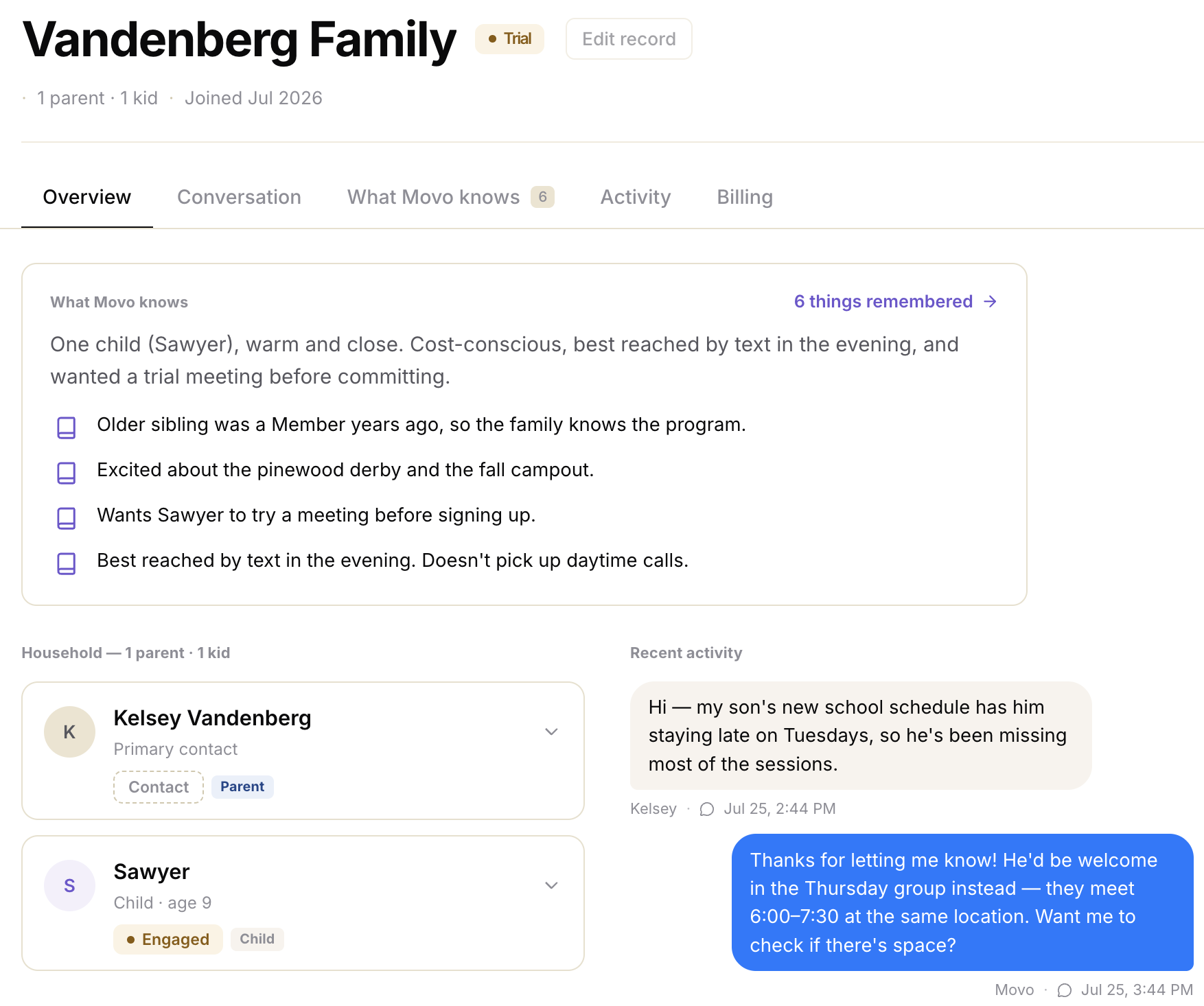
When clicking on an escalation, Movo will show you an overview of each family - everything we know about the members and the situation, helping you make a more informed decision.
Taking over
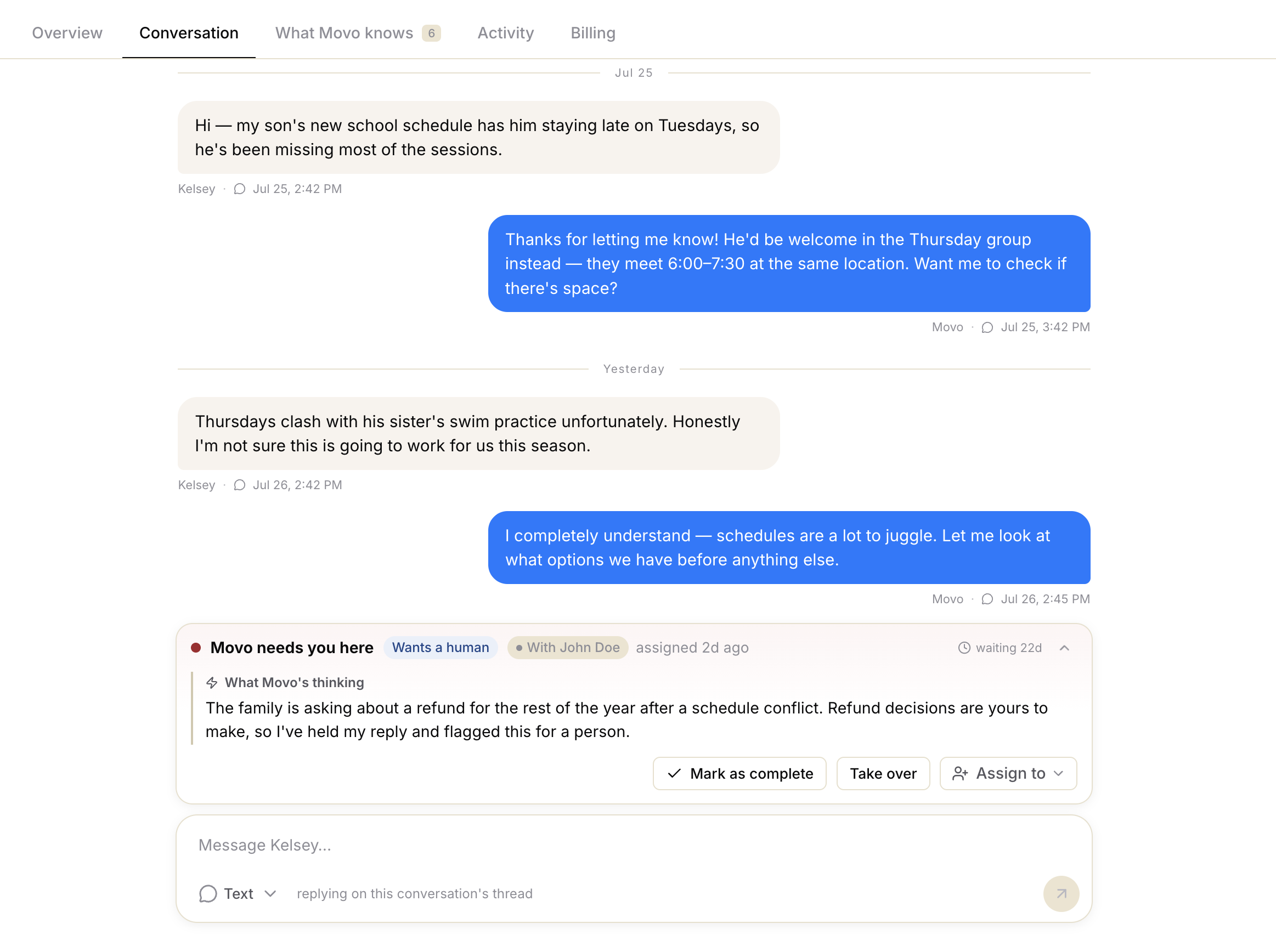
Once you're up to speed on the family, you can respond directly from the Movo platform by clicking on the Conversations tab.
Here you'll see the whole conversation history + be able to respond directly.
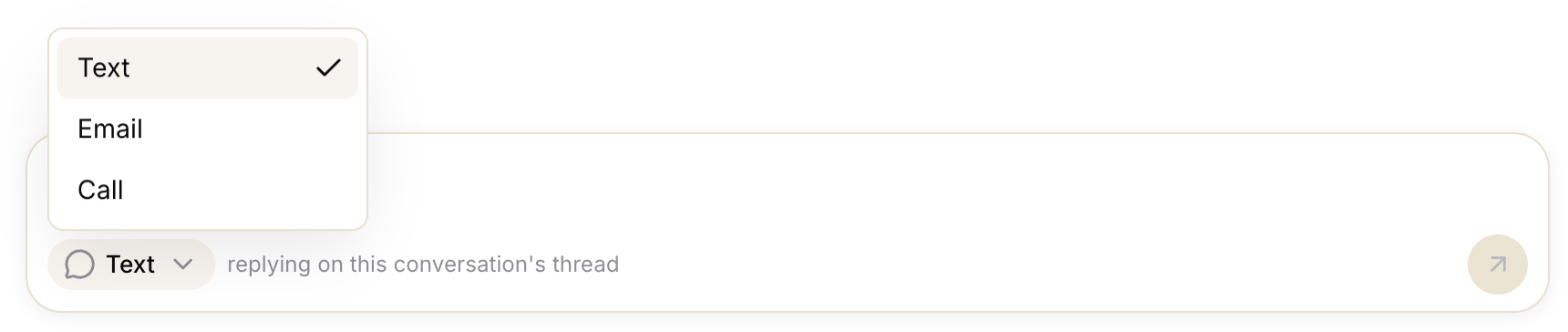
Movo defaults to each Family member's preferred communication channel, but you can also chose to reply via Text/Email/Call by clicking the channel selector at the bottom of the message panel: