Can I send a message to all my families?
Last updated: November 3, 2026
Not at the moment. You can message families one at a time, but there's no button to message them all at once, and you can't schedule a message. The Scheduled tab in Conversations only shows messages Movo is about to send. Here's what to do instead.
Your schedule or place changed
Change it in your location's details, so Movo gives the right answer from now on. If you look after one location, you can't change this yourself, so ask whoever invited you.
Go to Settings, then Organization, then Structure, and pick the location from the list on the left.
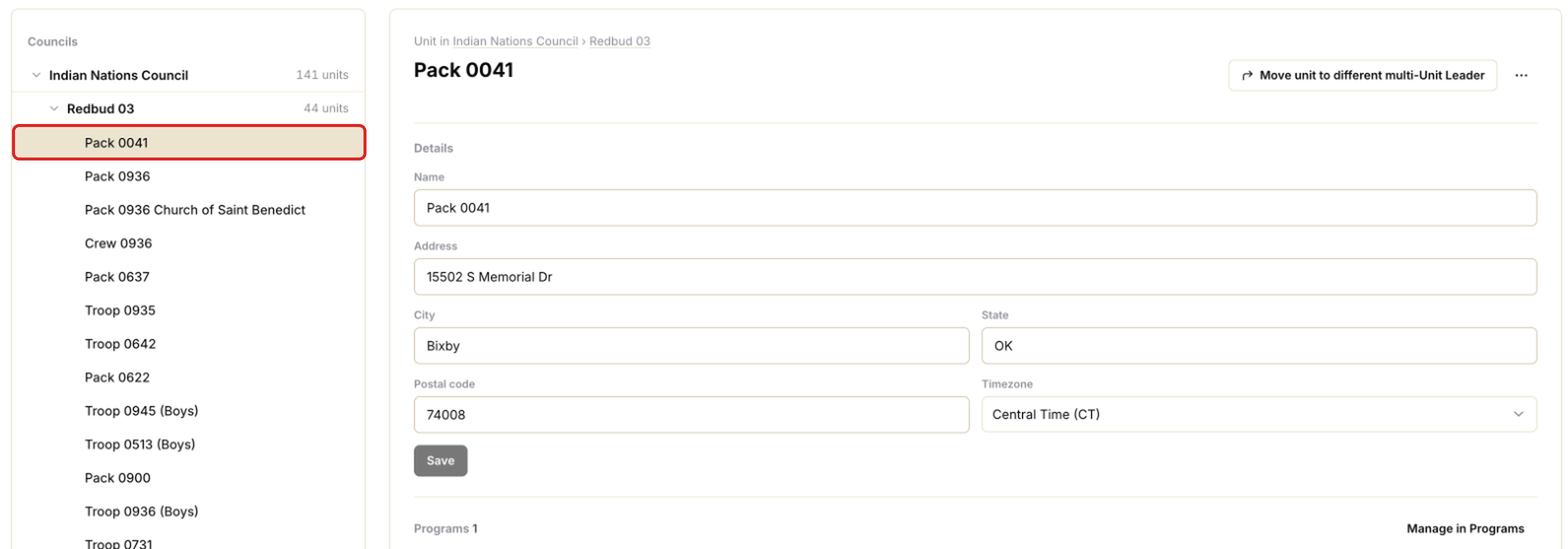
If the place changed, change the address and click Save.
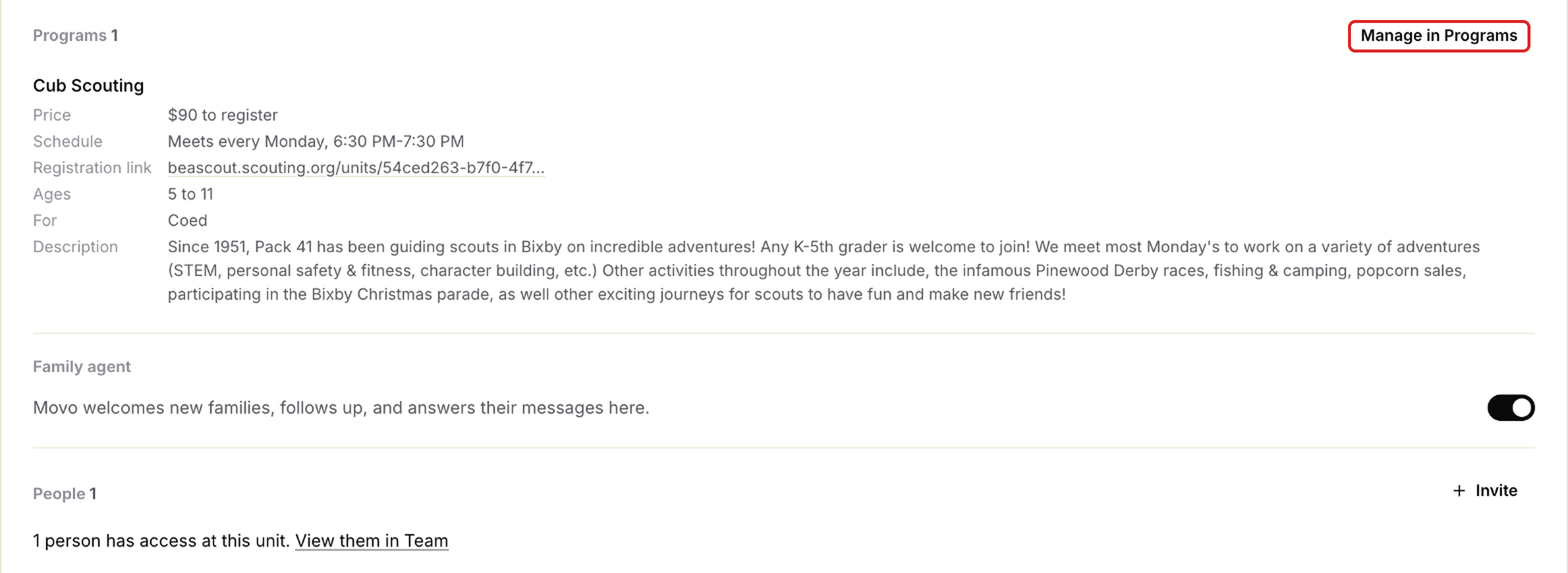
If the schedule changed, scroll down to Programs and click Manage in Programs (ringed below).
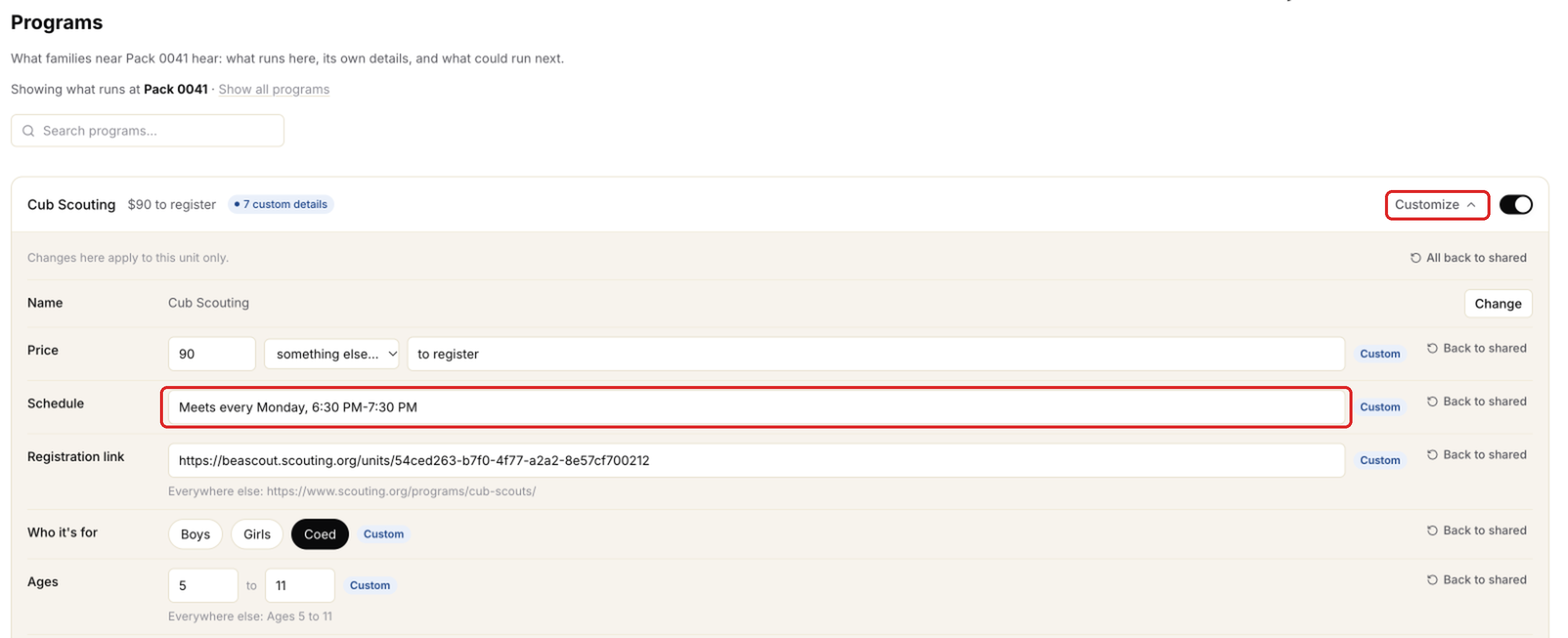
Click Customize and change the Schedule (both ringed below). It saves when you click away. The change applies to that location only.
If your locations' details come from another system, change them there, or the next update will replace what you typed.
One session is cancelled
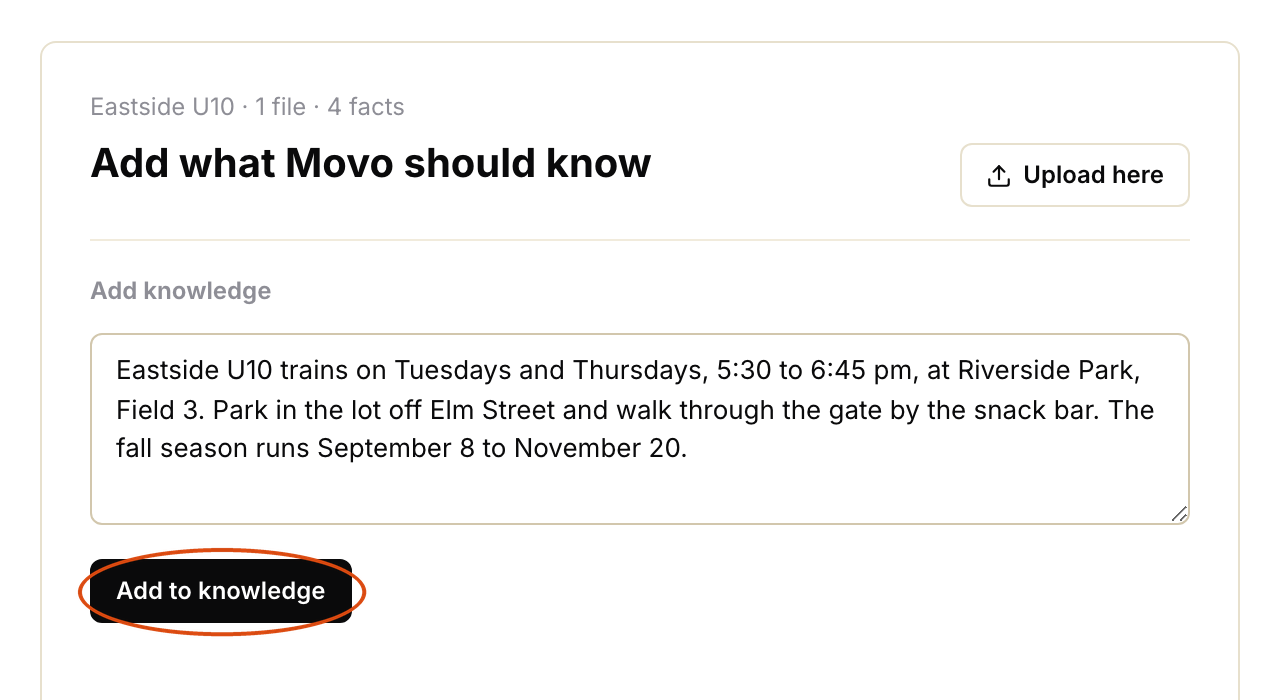
Add a note to Knowledge so Movo can answer if a family asks. Type the fact and click Add to knowledge (ringed below). See Adding knowledge Movo will use.
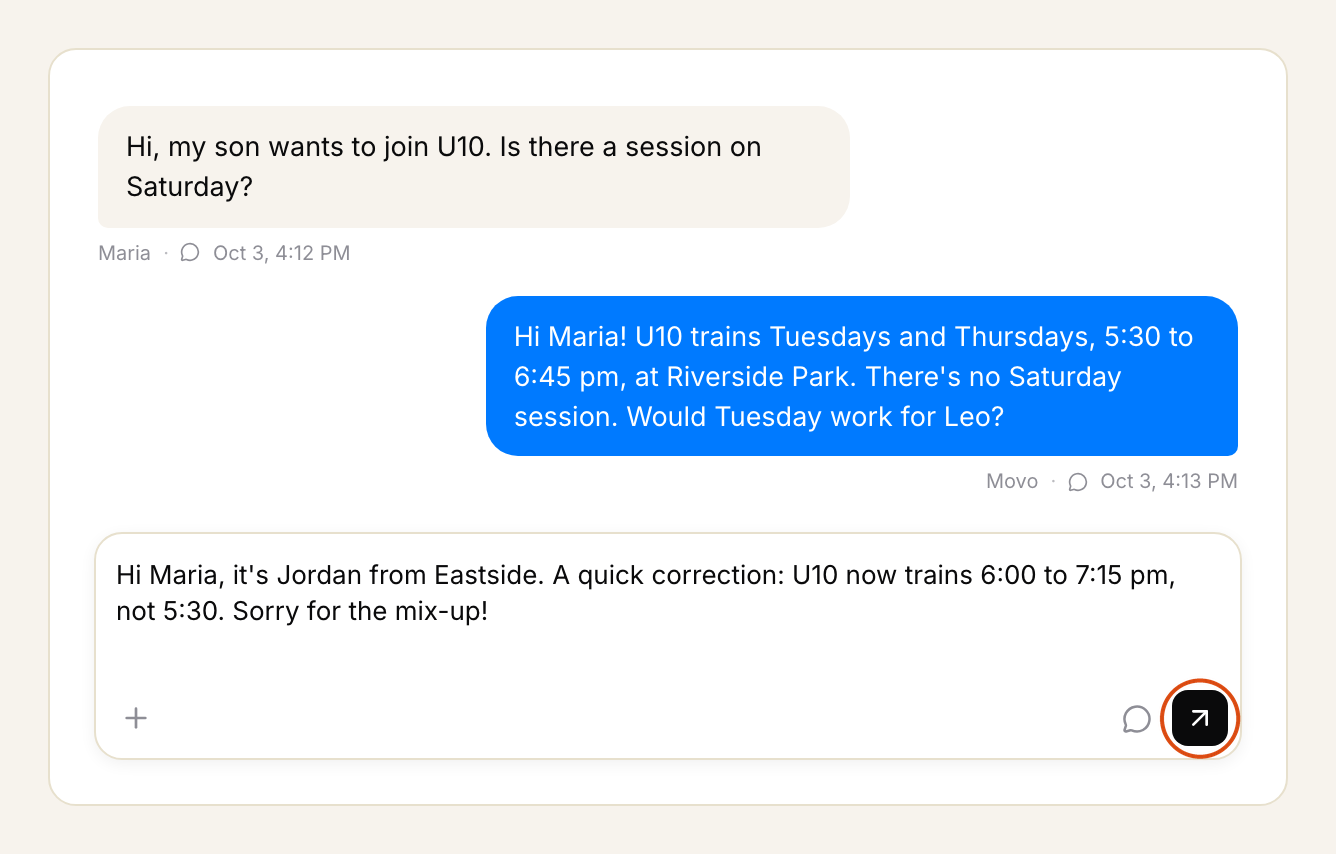
Message any family who needs to know. Open the family, type in the box at the bottom and click send (ringed below). See Texting, emailing or calling a family yourself.